Create Your Meevee Account
This guide shows you how to create your Meevee account and sign in for the first time. Following these steps will give you access to the platform where you can set up a personalized experience for your child. You will need a valid email address or an active Google or Apple account.
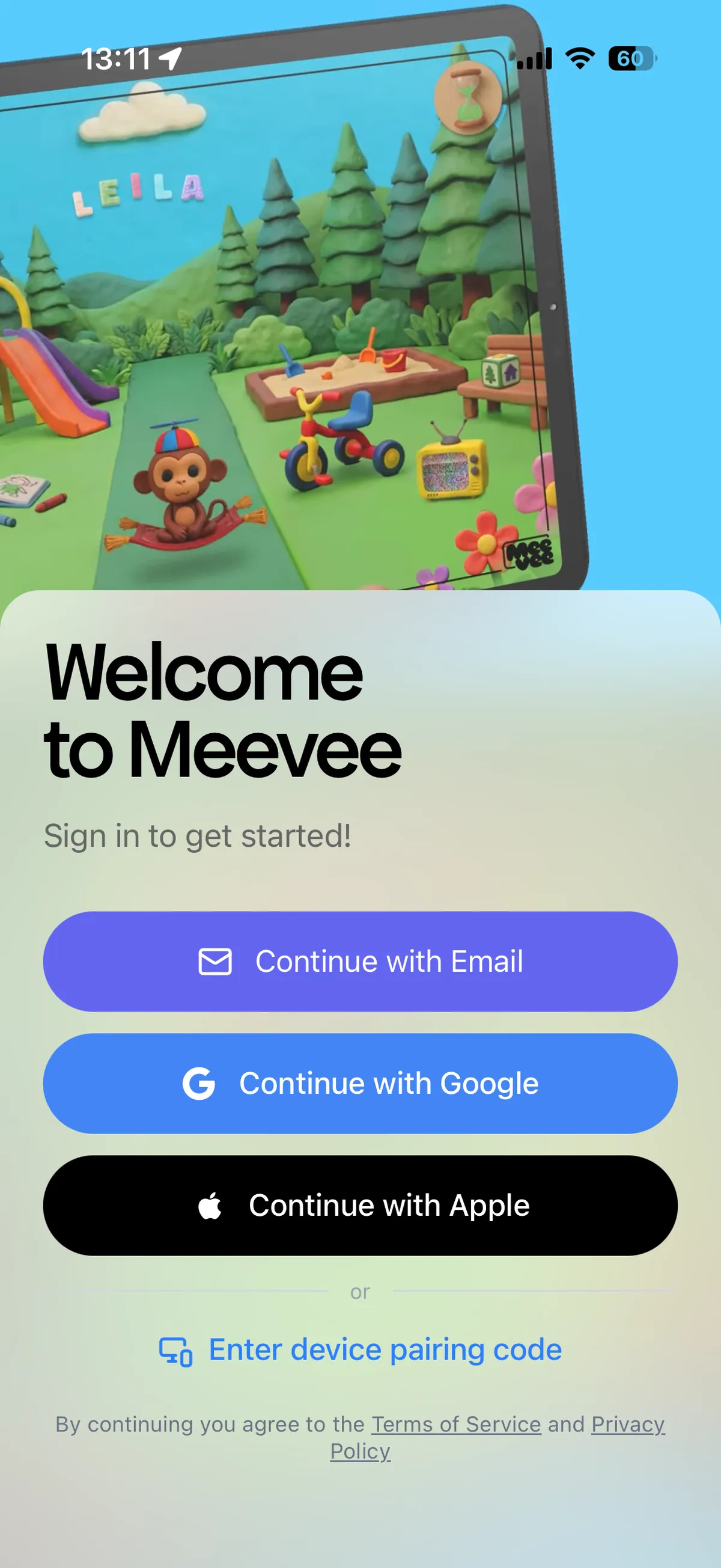
From the “Welcome to Meevee” screen, select your preferred sign-up method: Continue with Email, Continue with Google, or Continue with Apple.
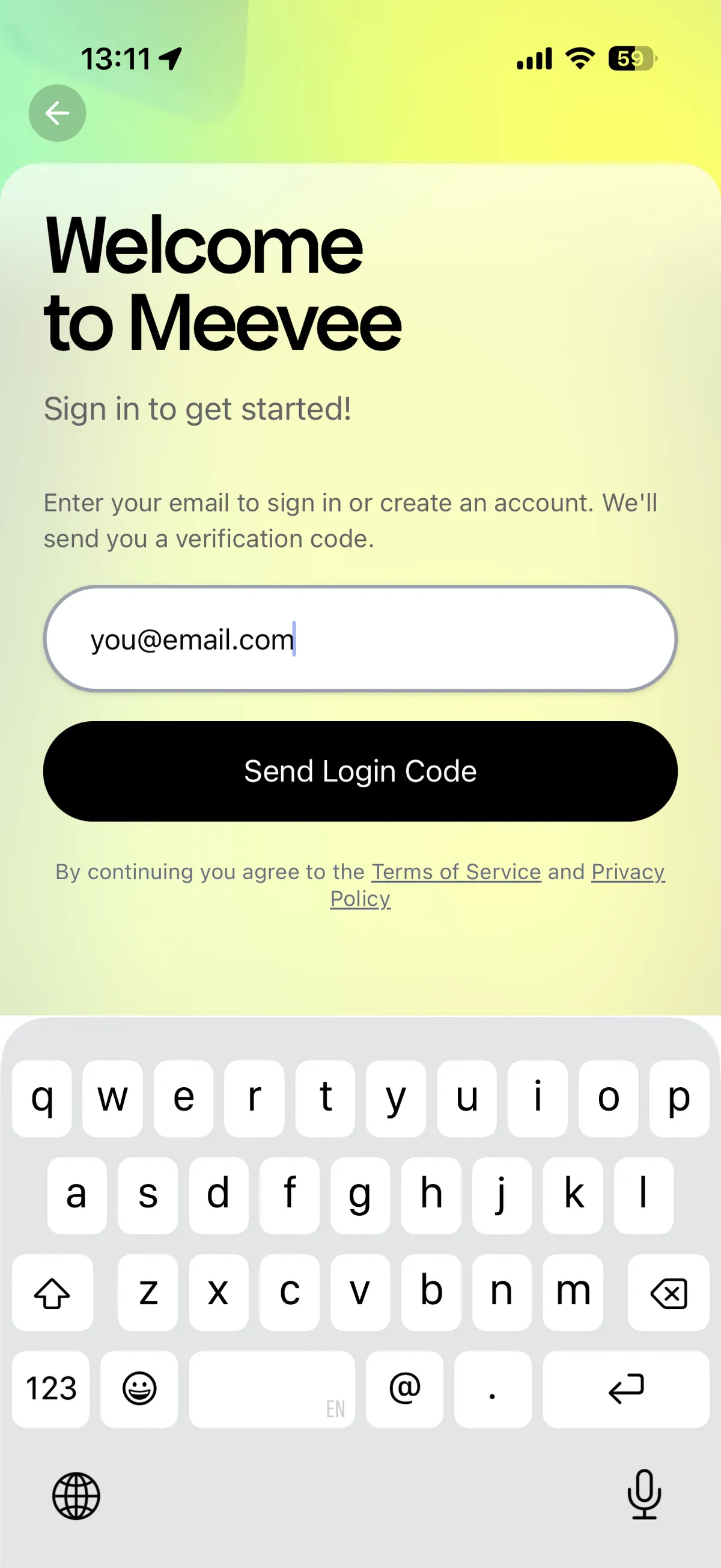
If you chose Continue with Email, enter your email address in the field provided and click Send Login Code.
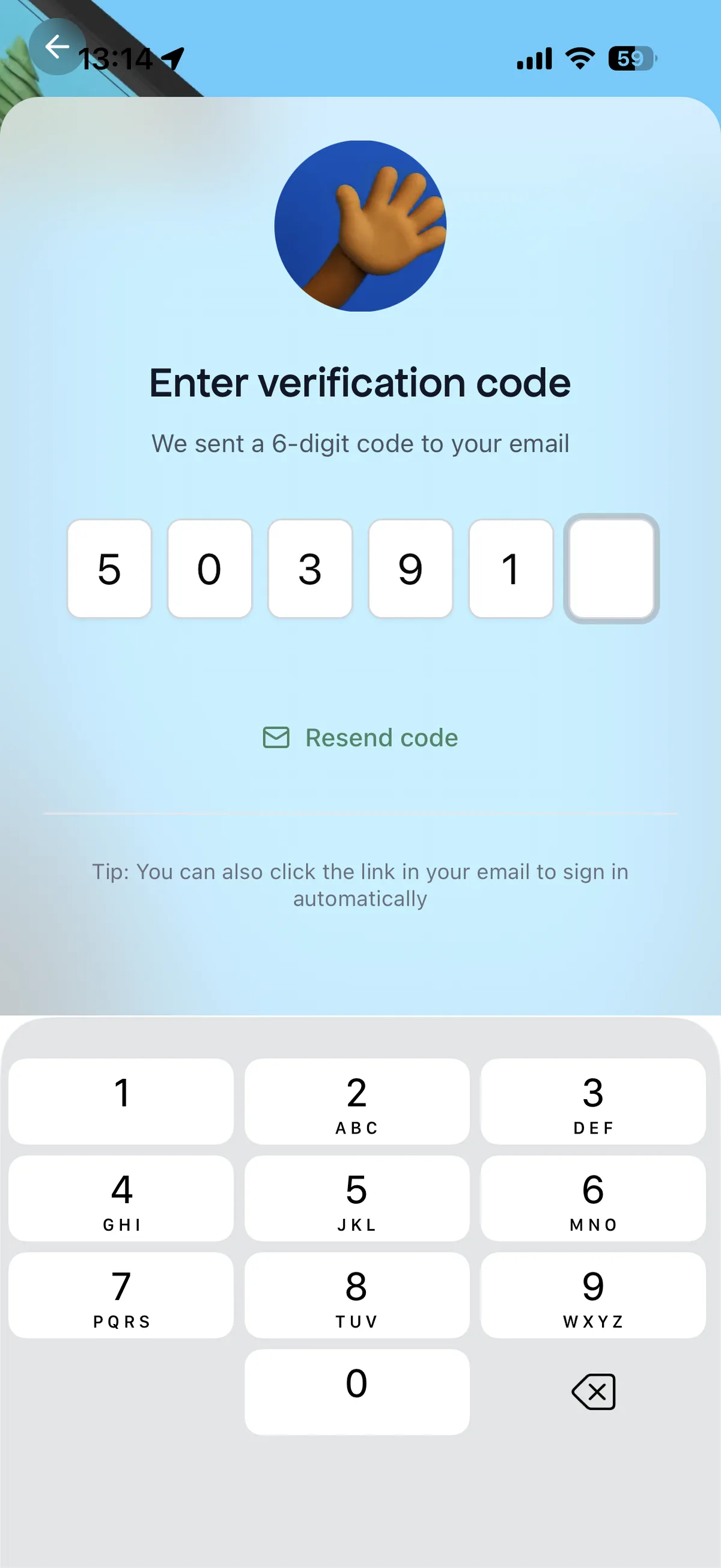
Check your inbox for a 6-digit verification code from Meevee. Enter this code on the verification screen to continue.
If you chose to sign up with Google or Apple, follow the on-screen prompts to sign in and authorize your account.
On the “Welcome to Meevee!” screen, enter Your name and a Family name. You can also click the camera icon to upload a profile picture.
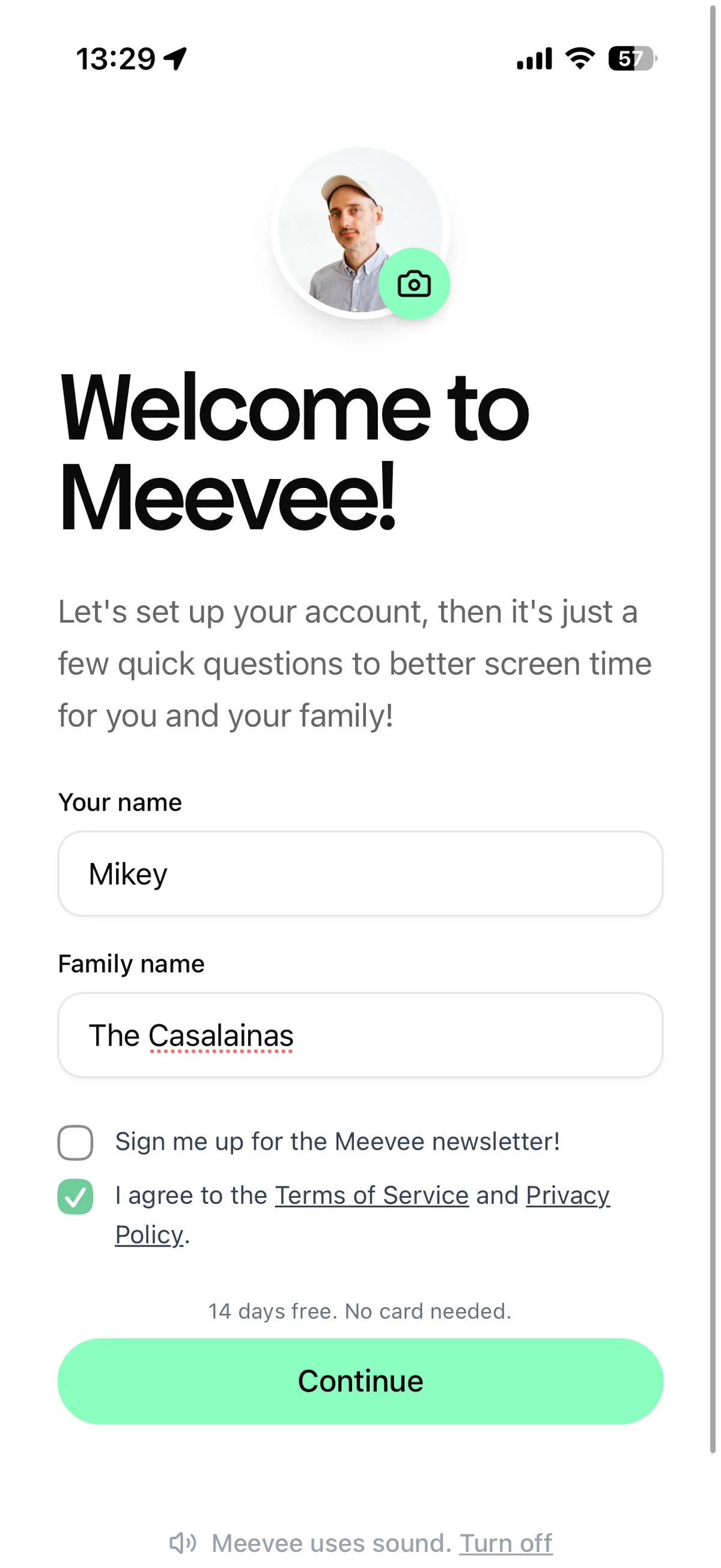
You must check the box to agree to the Terms of Service and Privacy Policy.
Click Continue to finish creating your account and start the onboarding process.
If you don’t receive your verification email
If you chose to sign up with email and don’t see the verification code in your inbox, check your spam or junk folder. You can also click Resend code to have it sent again.
Summary
Creating a Meevee account is your first step toward providing a better, more balanced screen time experience for your child. This quick process allows you to sign in securely using your email, Google, or Apple account and sets up your initial parent profile. Once your account is created, you can begin personalizing Meevee for your family.