Try Meevee
Try Meevee
← All articles
Getting Started with Meevee
  • Create Your Meevee Account
  • How to Add Your Child's Profile and Interests
  • Pair a Second Device for Your Child to Play On
  • Set Up Your Parent and Family Profile
Managing Play Sessions
  • How to Access Parent Controls During a Live Session
  • How to Choose an Activity for After a Meevee Play Session
  • How to Enable Push Notifications
  • How to Set a Screen Time Limit for a Play Session
  • How to Start a New Play Session
  • Review the Post-Session Summary
The Child's Experience
  • How Sessions End with the Wind-Down Routine
  • How the Hourglass Timer Works
  • Interactive Brain-Breaks: Puzzles, Coloring, and Games
  • Understanding the Child's Playspace
Customizing Your Account
  • How to Change Your Name and Profile Picture
  • How to Manage Your Meevee Membership Plan
  • How to Upload Family Photos for Personalized Games
  • Update Your Child's Interests and Milestones via Chat
Feedback and Support
  • Contact Support
  • How to Delete Your Meevee Account
  • How to Log Out of Your Meevee Account
  • How to Send Feedback or Report an Issue via Chat
Help / Customizing Your Account

How to Upload Family Photos for Personalized Games

Make your child’s Meevee experience even more special by personalizing their games with your own family photos. This guide shows you how to upload pictures of family, pets, or favorite things to be used in activities like jigsaw puzzles and memory games. You will need photos saved on your device to upload.

  1. From the main chat screen, click on your profile avatar in the top-left corner to open the Settings panel.

  2. Scroll down to the Family photos section.

  3. Click the add photo icon (a square with a plus sign).
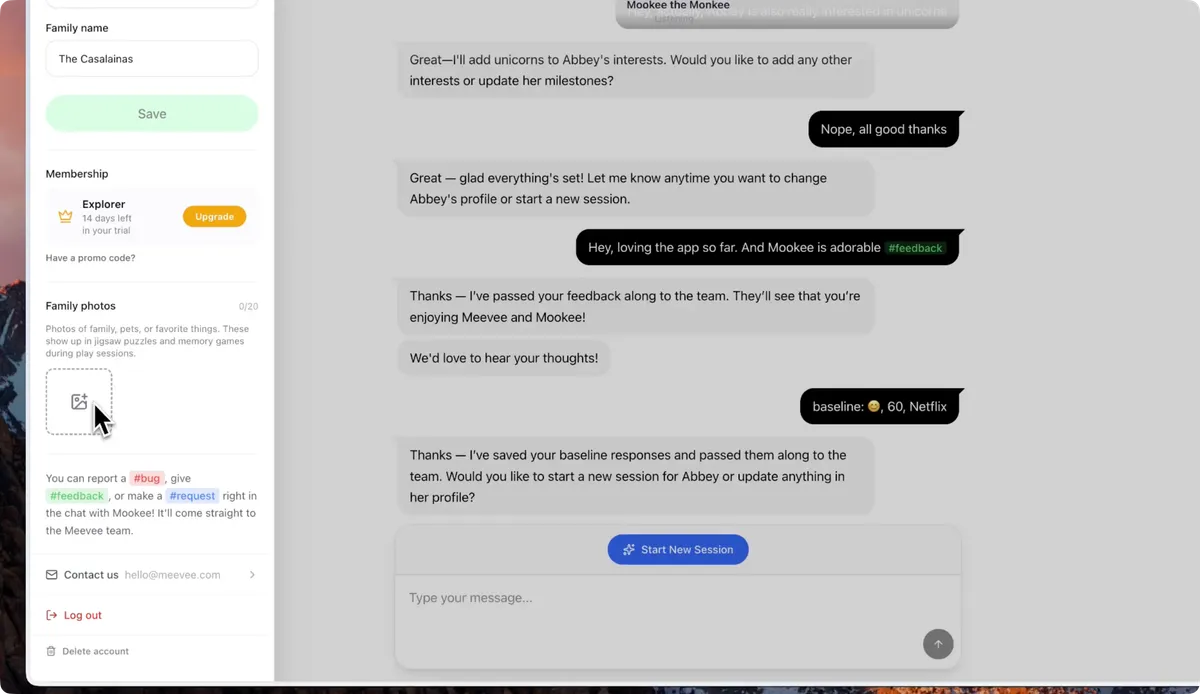
  4. Your device’s file browser or photo library will open. Navigate to the photo you want to upload and select it.

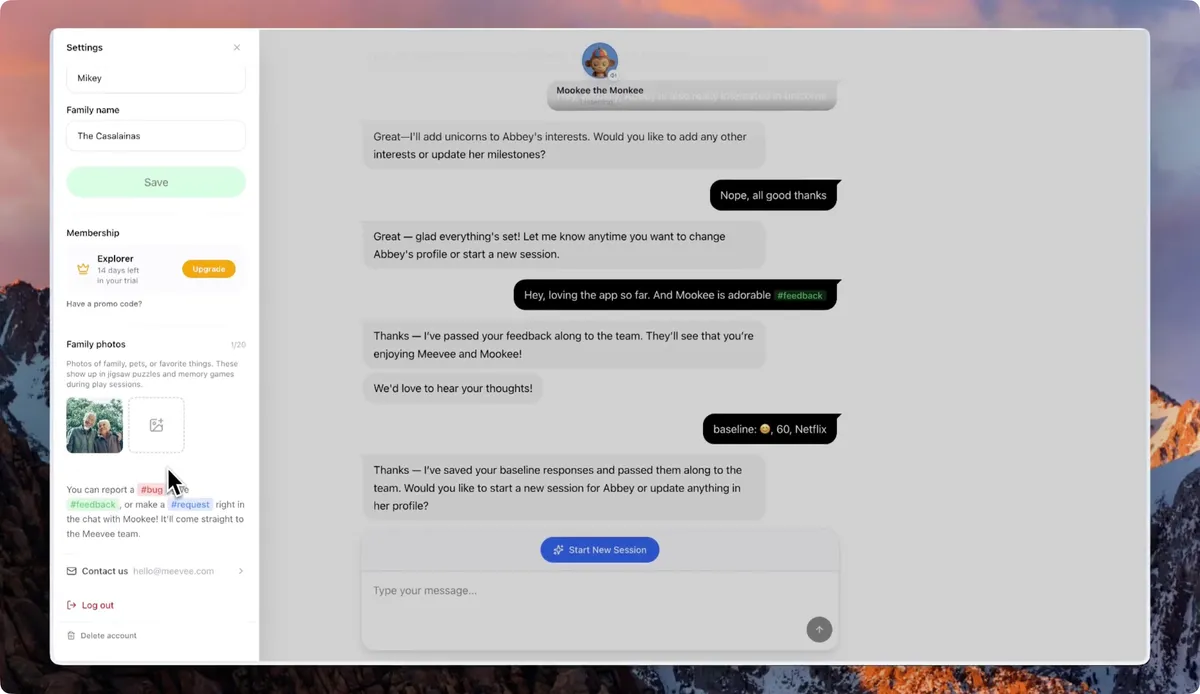
  5. The photo will now appear in your Family photos gallery and can be used to personalize games during play sessions. You can upload up to 20 photos. You can select the uploaded photo to remove it or add a description.
Summary

This article explains how to upload personal photos to your Meevee account. By adding pictures of family, friends, pets, or cherished memories, you can create a more engaging and familiar experience for your child. These photos are automatically integrated into interactive activities like jigsaw puzzles and memory games, turning screen time into a personalized adventure.

Related

  • Interactive Brain-Breaks: Puzzles, Coloring, and Games
  • Update Your Child’s Interests and Milestones via Chat
  • Change Your Name or Profile Picture

Last updated: 8 May 2026

Previous How to Manage Your Meevee Membership Plan Next Update Your Child's Interests and Milestones via Chat
Screen Time That Ends Well
  • Made for Parents
  • Curated Content
  • Made for Kids
  • Built with Care
  • Testimonials
  • Membership
  • Blog
  • Help Center
  • The Meevee Story
  • Our Team
  • Careers
  • Parent Guides
  • Printables
  • Content Standards
  • FAQs
  • Support
  • Privacy
  • Terms of Service
  • Press Kit
  • Contact Us
  • For Distributors
  • For Creators
  • Meevee for iOS
  • Meevee for Android
  • Meevee for Smart TV
© COPYRIGHT MEEVEE B.V. 2026