How to Access Parent Controls During a Live Session
While your child is enjoying their Meevee session, you can securely access parent controls to make adjustments on the fly. This guide shows you how to open the parent chat to change the screen time limit, end a session early, or update your child’s profile without disrupting their play.
From your child’s playspace, locate the lock icon in the top-left corner of the screen.
Press and hold the lock icon for two seconds to reveal the parent access prompt.
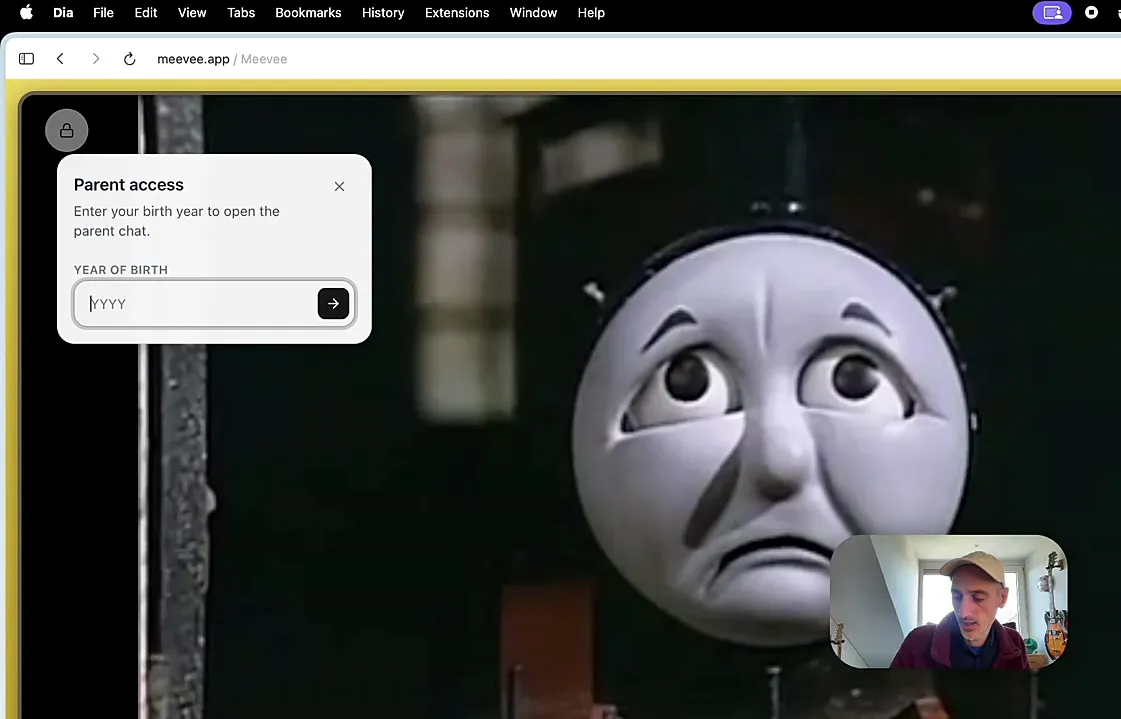
Enter your birth year in the Year of Birth field. This is the same year you used when setting up your account.
Click the arrow button to open the parent chat.
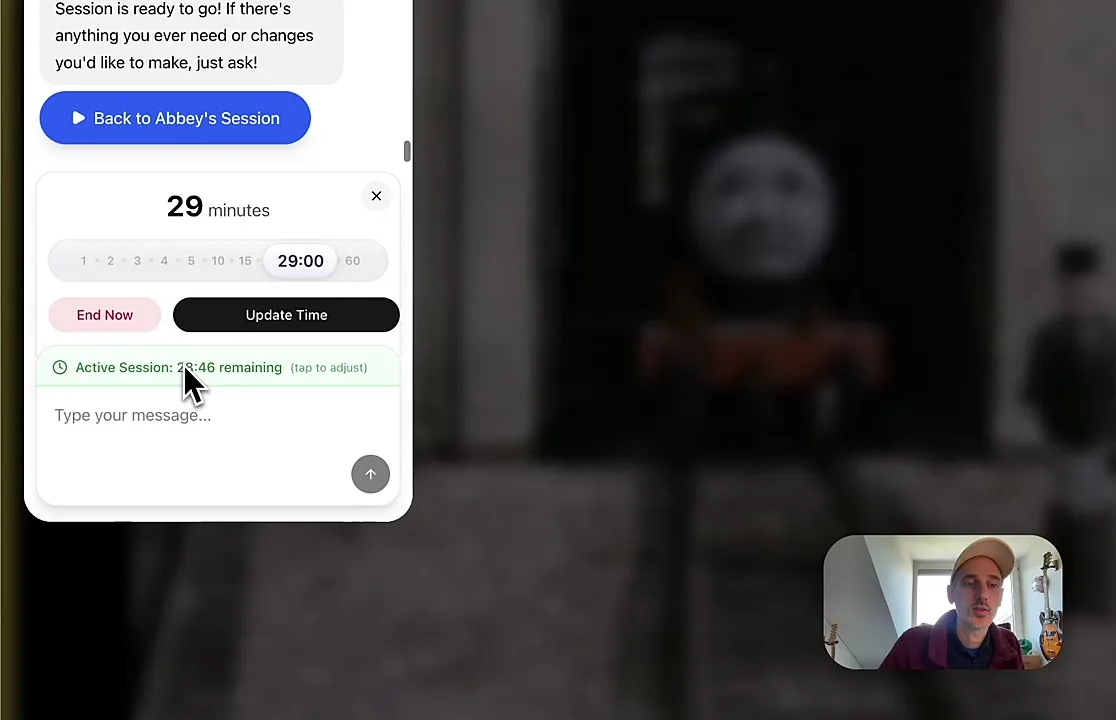
The parent chat will open as an overlay. To change the session’s duration, tap the Active Session bar at the bottom of the chat window.
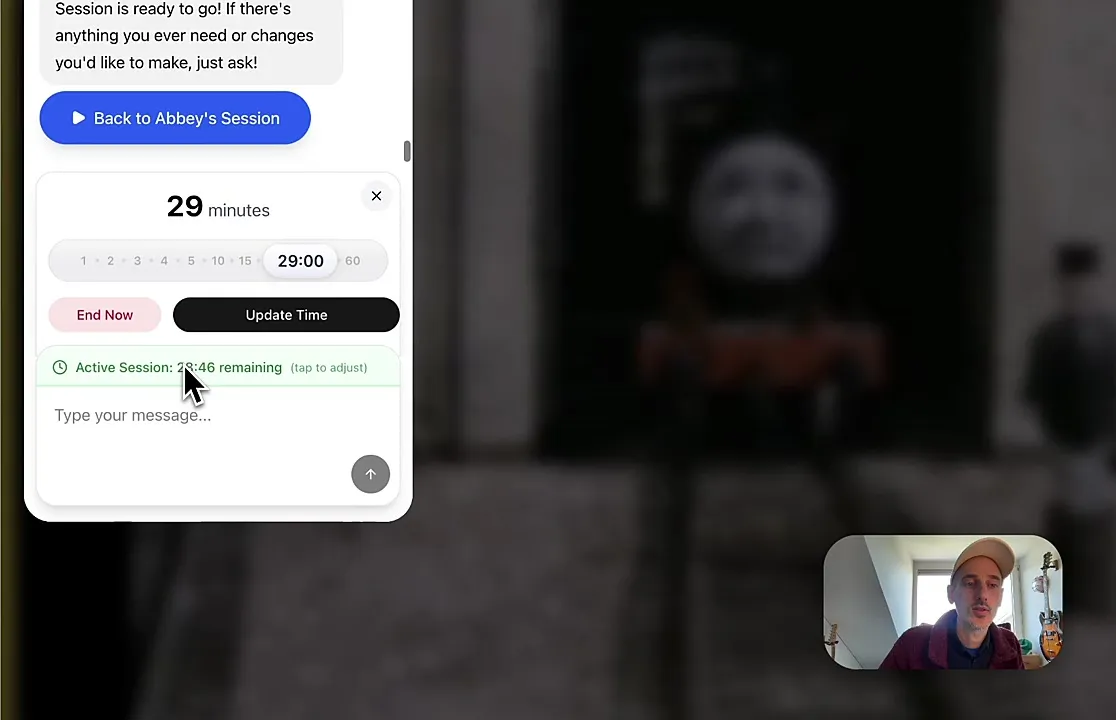
Use the slider to adjust the remaining time or click End Now to stop the session immediately.
Click Update Time to save your changes.
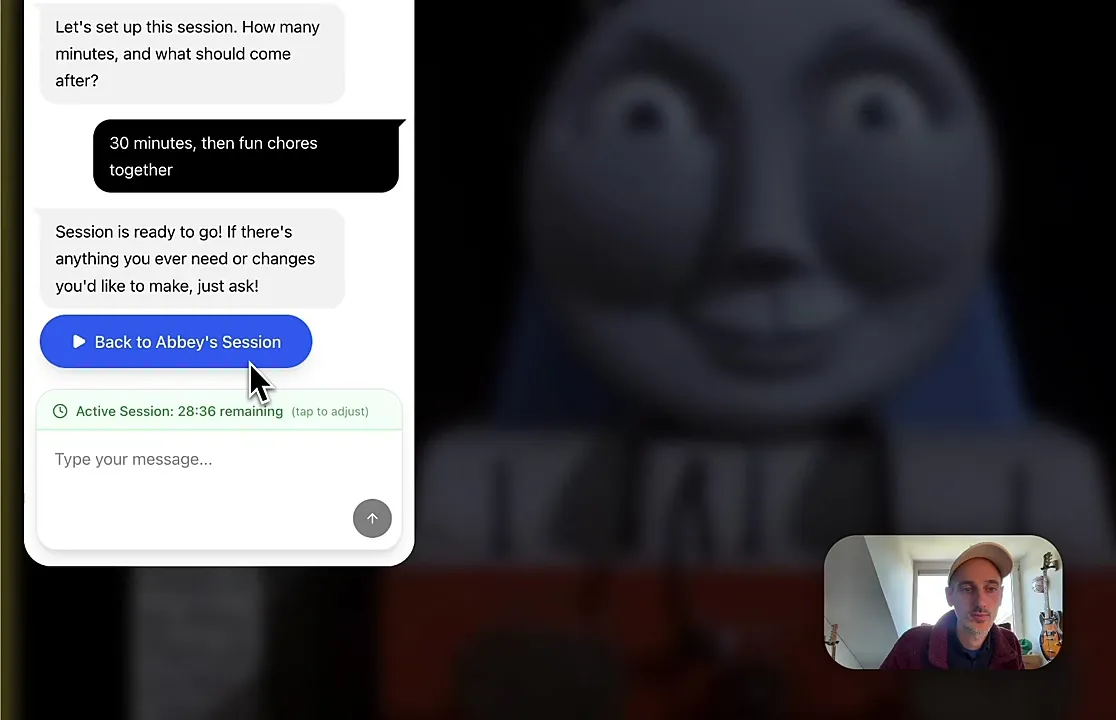
To return to the playspace, click Back to [Child’s Name]’s Session.
Summary
This article explains how to access and use the parent controls during an active play session. By securely entering your birth year, you can open the parent chat to adjust screen time limits, end the session, or communicate with Mookee to update your child’s preferences, all without interrupting the child’s experience. This feature ensures you always have control over your child’s screen time.