Set Up Your Parent and Family Profile
After creating your Meevee account, the first step is to set up your parent and family profile. This guide shows you how to add your name, family name, and profile picture to personalize your account. This information helps create a welcoming space as you begin your Meevee journey.
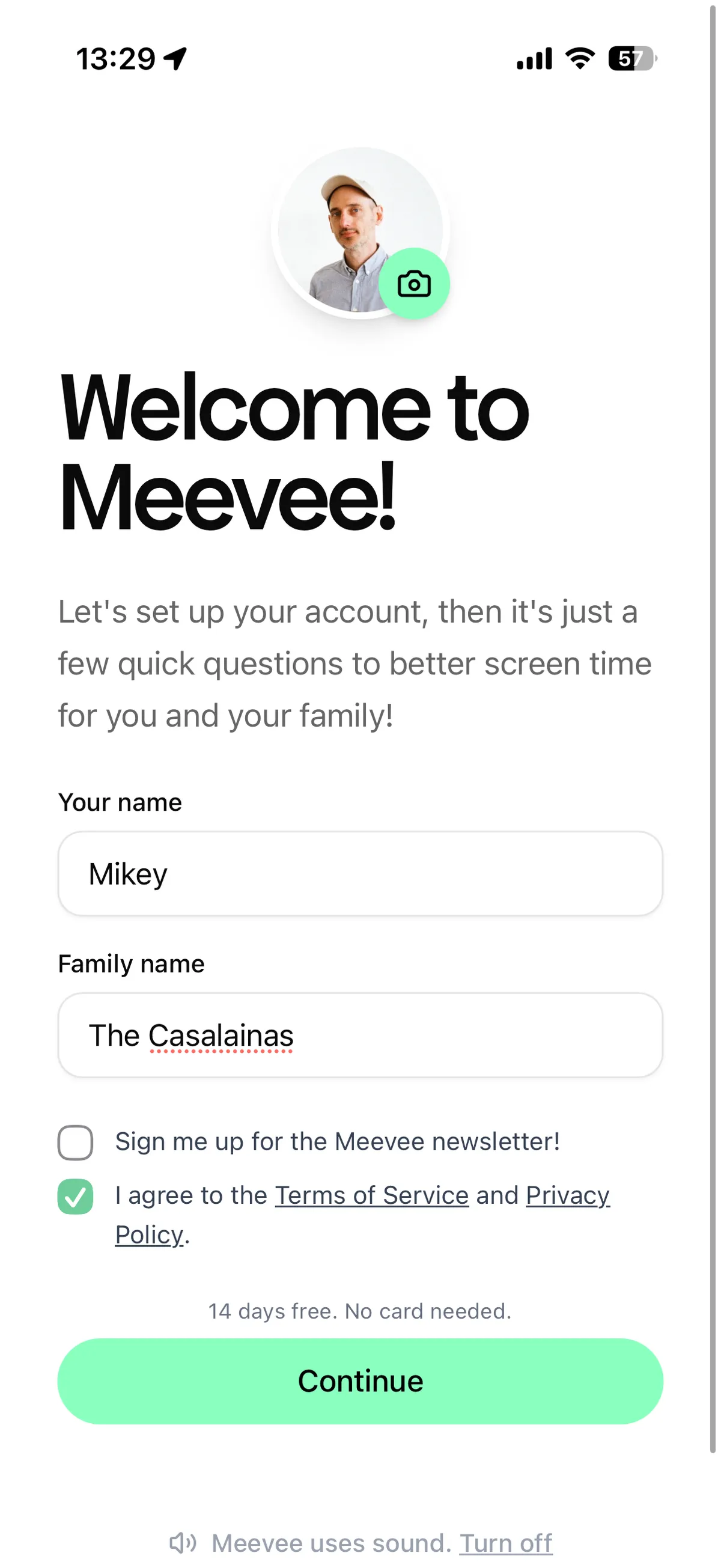
On the “Welcome to Meevee!” screen, enter your first name in the Your name field.
To add a profile picture, click the camera icon above your name and select a photo from your device.
The Family name field will auto-populate based on your first name (e.g., “Mikey’s Family”). You can edit this to your preference (e.g., “The Casalainas”).
Once you have reviewed the information and agreed to the Terms of Service, click Continue.
Summary
Setting up your parent and family profile is the first step in personalizing your Meevee experience. This article explains how to add your name, family name, and a profile picture, creating a welcoming space for you and your family to manage your child’s screen time journey.