Pair a Second Device for Your Child to Watch Videos and Play On
Meevee is designed for a two-device experience, allowing you to manage sessions from your phone while your child plays on a tablet or another device. This guide shows you how to pair a second device to your account for your child to use. You will need to have the Meevee app installed on both your primary device and the second device.
After setting up your child’s profile during the onboarding chat, Mookee will ask where your child would like to watch. Select Another device.
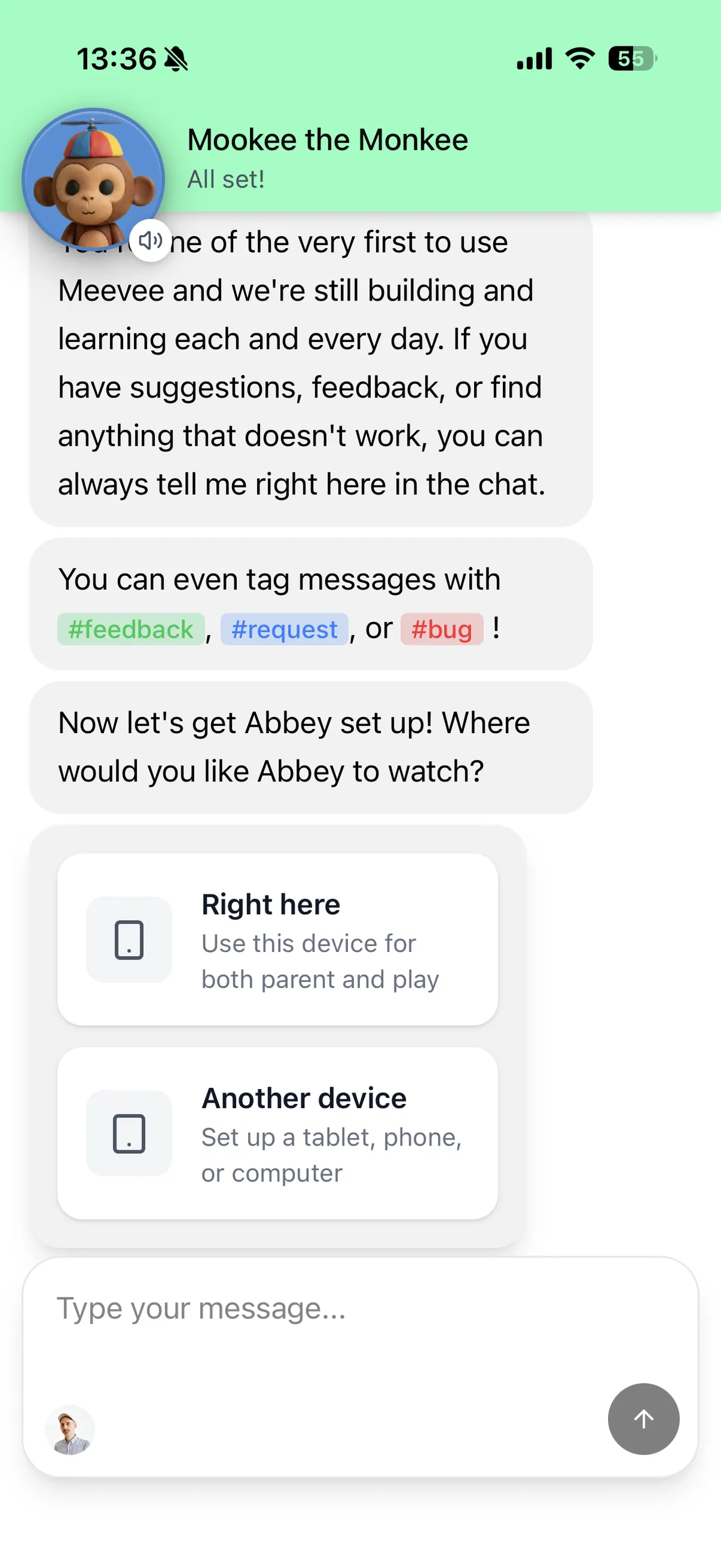
Meevee will then display a unique QR code and a numeric pairing code on your screen. Keep this screen open on your device.
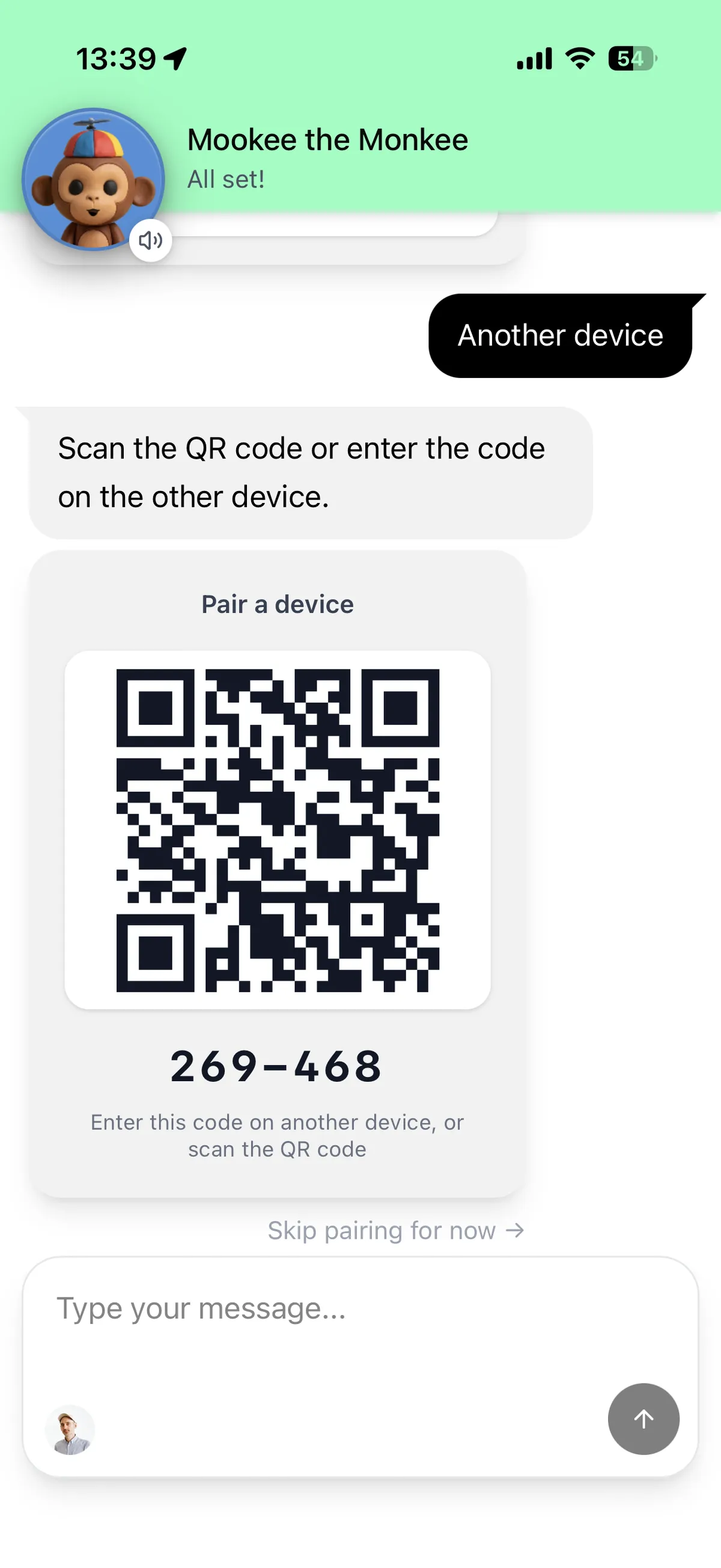
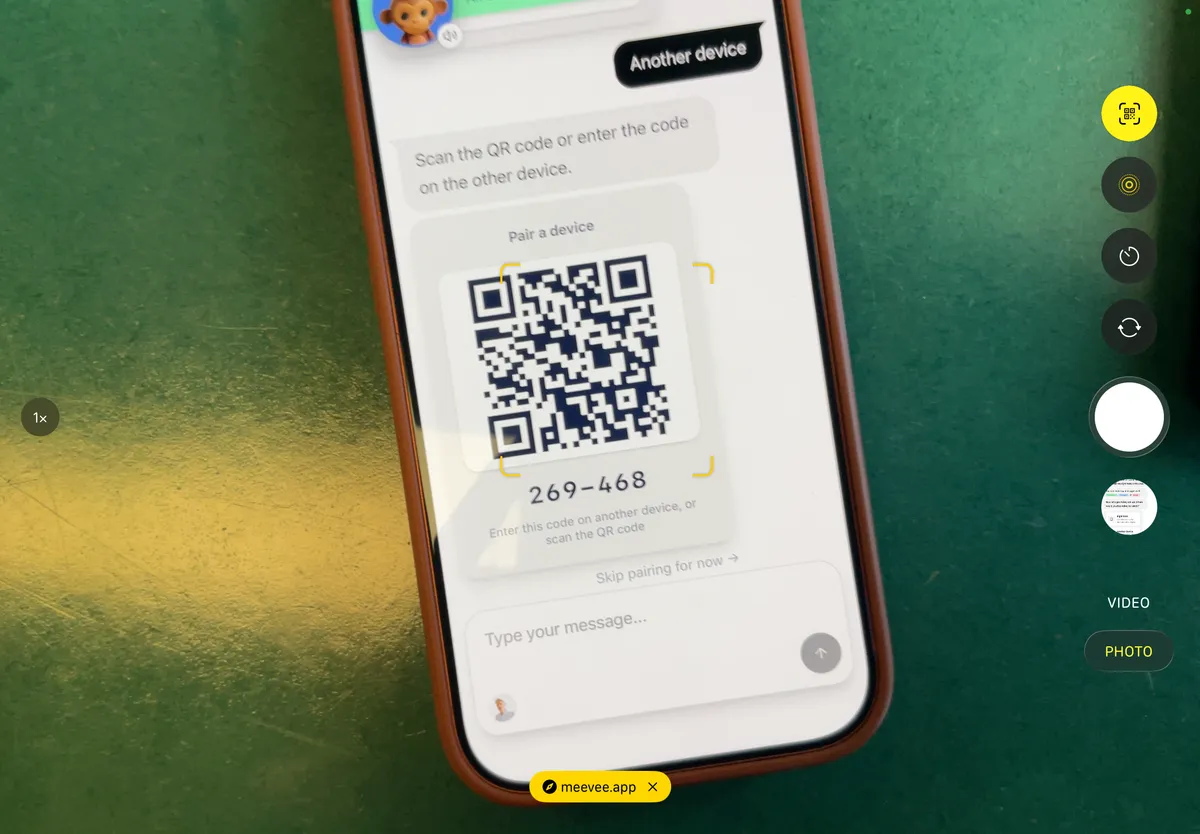
On your child’s device (e.g., a tablet or another phone), open the camera app to scan the QR-code.
This will take you to a pairing screen on the device.
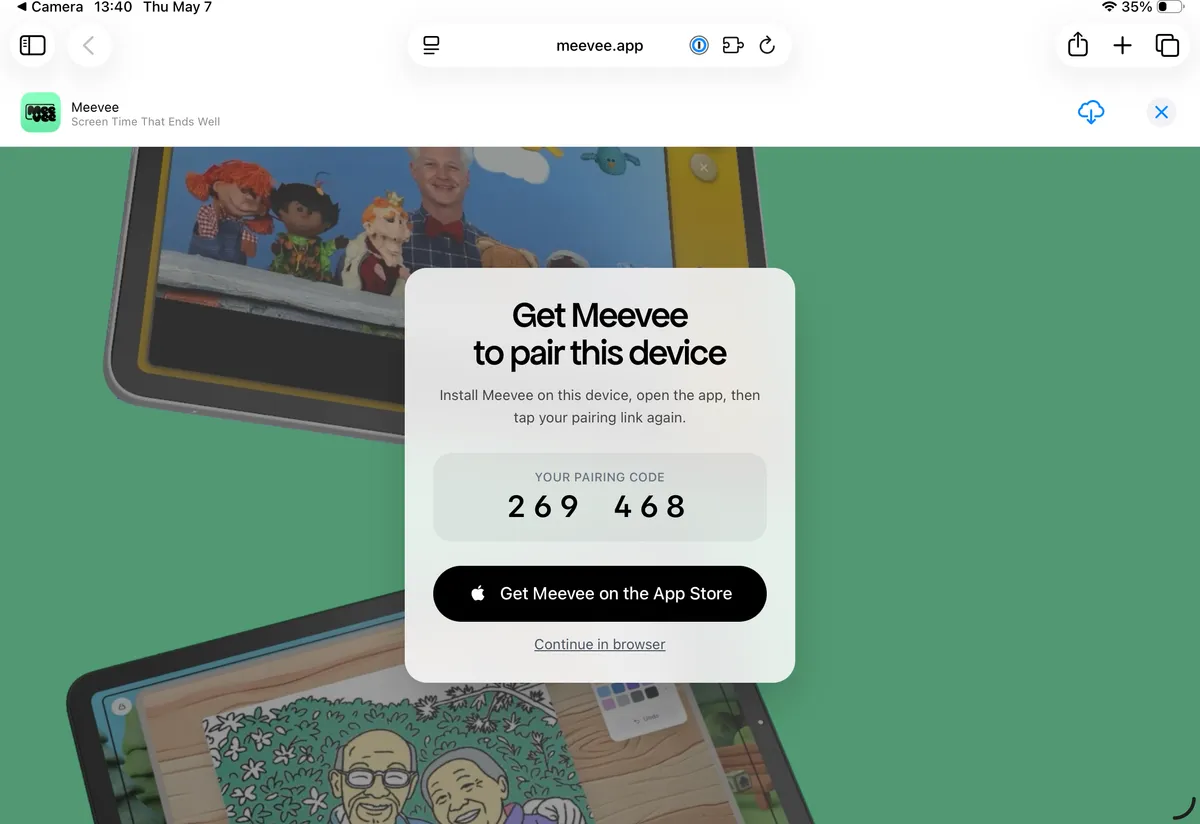
You can choose to open directly there. If you’re on an iPad, it’s best to follow the link and download the Meevee app from the App Store.
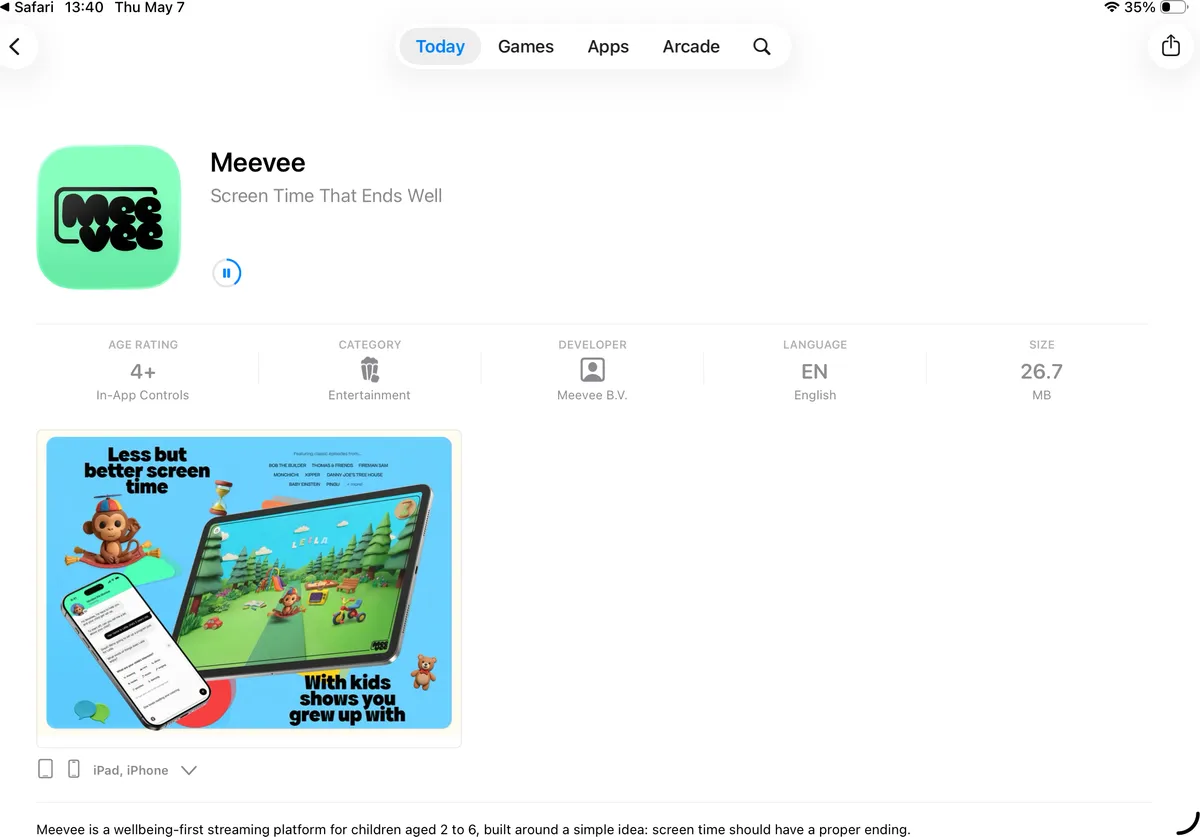
From the login screen, tap Enter device pairing code located below the main login buttons.
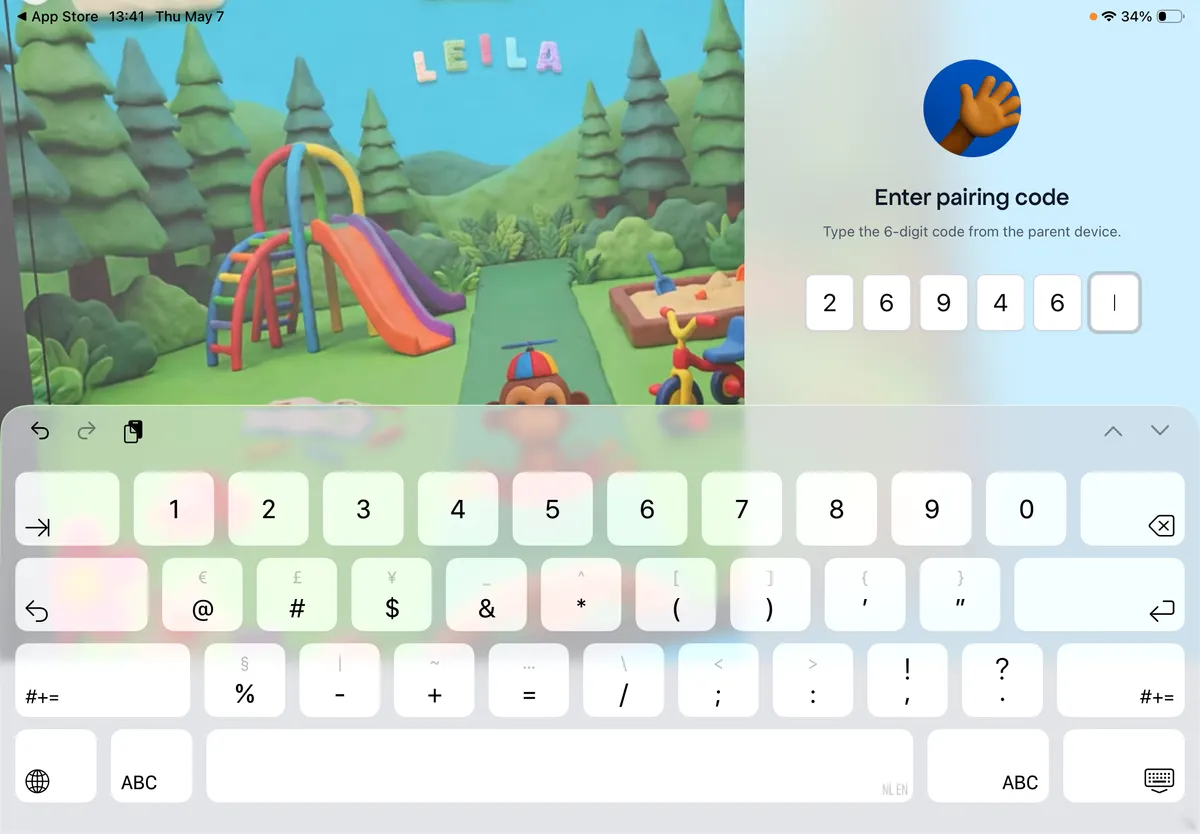
Enter the numeric code that is displayed on your primary device.
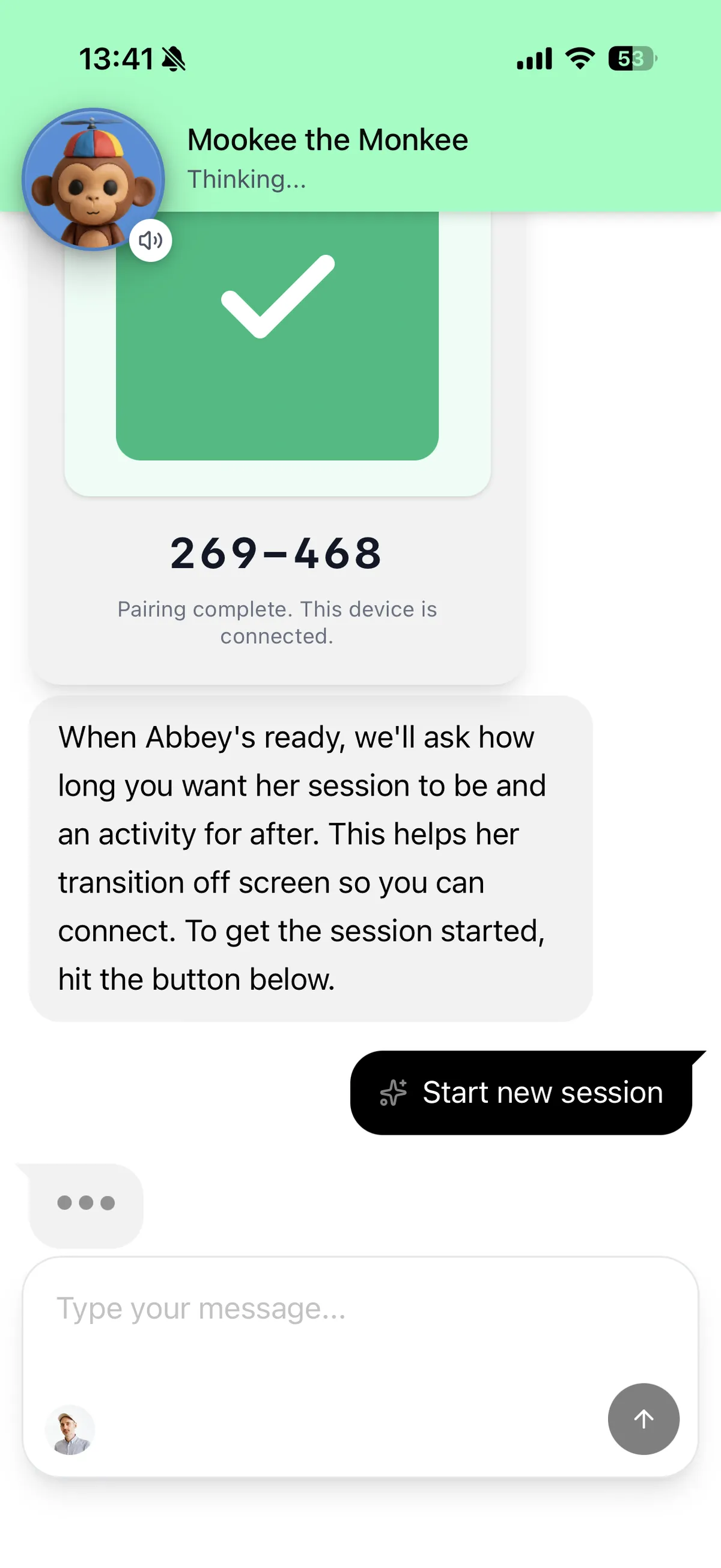
Once the code is entered correctly, the devices will connect. Your primary device will show a Paired successfully confirmation, and your child’s device will be ready for them to play.
Summary
Pairing a second device allows your child to enjoy Meevee on a dedicated tablet or phone, giving them an uninterrupted play experience. This setup lets you use your own device to manage session settings, set time limits, and receive updates, all without interrupting your child’s play.