Try Meevee
Try Meevee
← All articles
Getting Started with Meevee
  • Create Your Meevee Account
  • How to Add Your Child's Profile and Interests
  • Pair a Second Device for Your Child to Play On
  • Set Up Your Parent and Family Profile
Managing Play Sessions
  • How to Access Parent Controls During a Live Session
  • How to Choose an Activity for After a Meevee Play Session
  • How to Enable Push Notifications
  • How to Set a Screen Time Limit for a Play Session
  • How to Start a New Play Session
  • Review the Post-Session Summary
The Child's Experience
  • How Sessions End with the Wind-Down Routine
  • How the Hourglass Timer Works
  • Interactive Brain-Breaks: Puzzles, Coloring, and Games
  • Understanding the Child's Playspace
Customizing Your Account
  • How to Change Your Name and Profile Picture
  • How to Manage Your Meevee Membership Plan
  • How to Upload Family Photos for Personalized Games
  • Update Your Child's Interests and Milestones via Chat
Feedback and Support
  • Contact Support
  • How to Delete Your Meevee Account
  • How to Log Out of Your Meevee Account
  • How to Send Feedback or Report an Issue via Chat
Help / Managing Play Sessions

How to Start a New Play Session

This guide shows you how to start a personalized play session for your child in Meevee. Following these steps will allow you to set a screen time limit and choose an activity for a smooth transition when playtime is over. You can start a new session at any time from your parent chat screen.

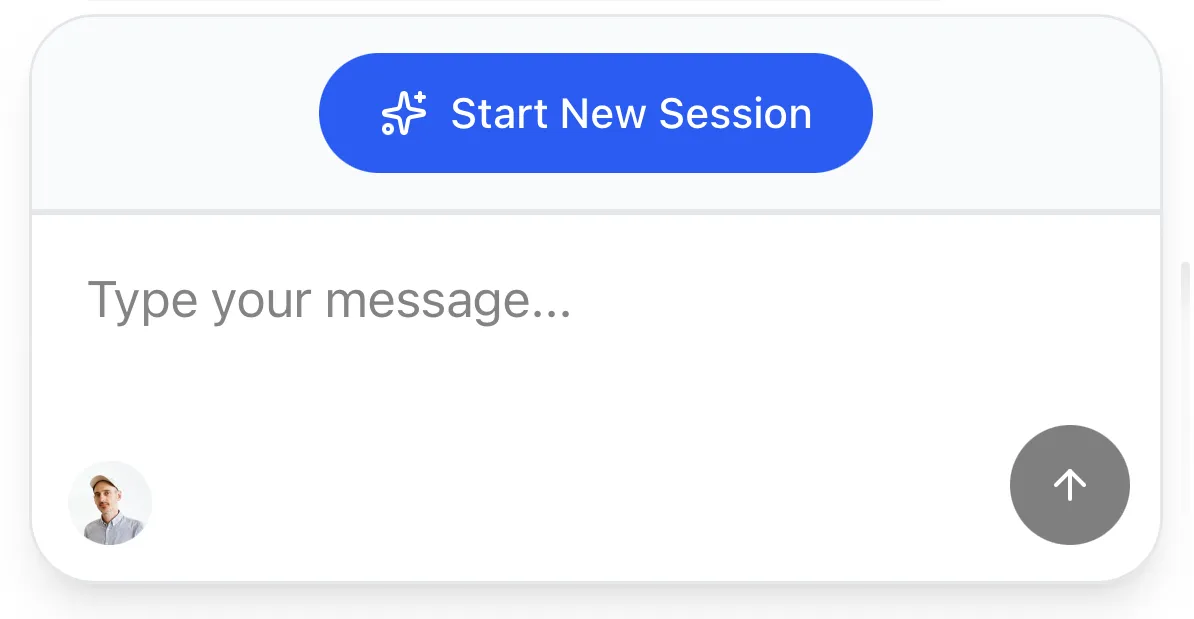
  1. From your main chat screen with Mookee, click the Start New Session button.
  2. In the New session window that appears, use the slider to set a Time Limit.

  3. Under the WHAT COMES AFTER? section, select the activity you and your child will do when the screen time for the session ends. You can also type a custom activity in the message box.
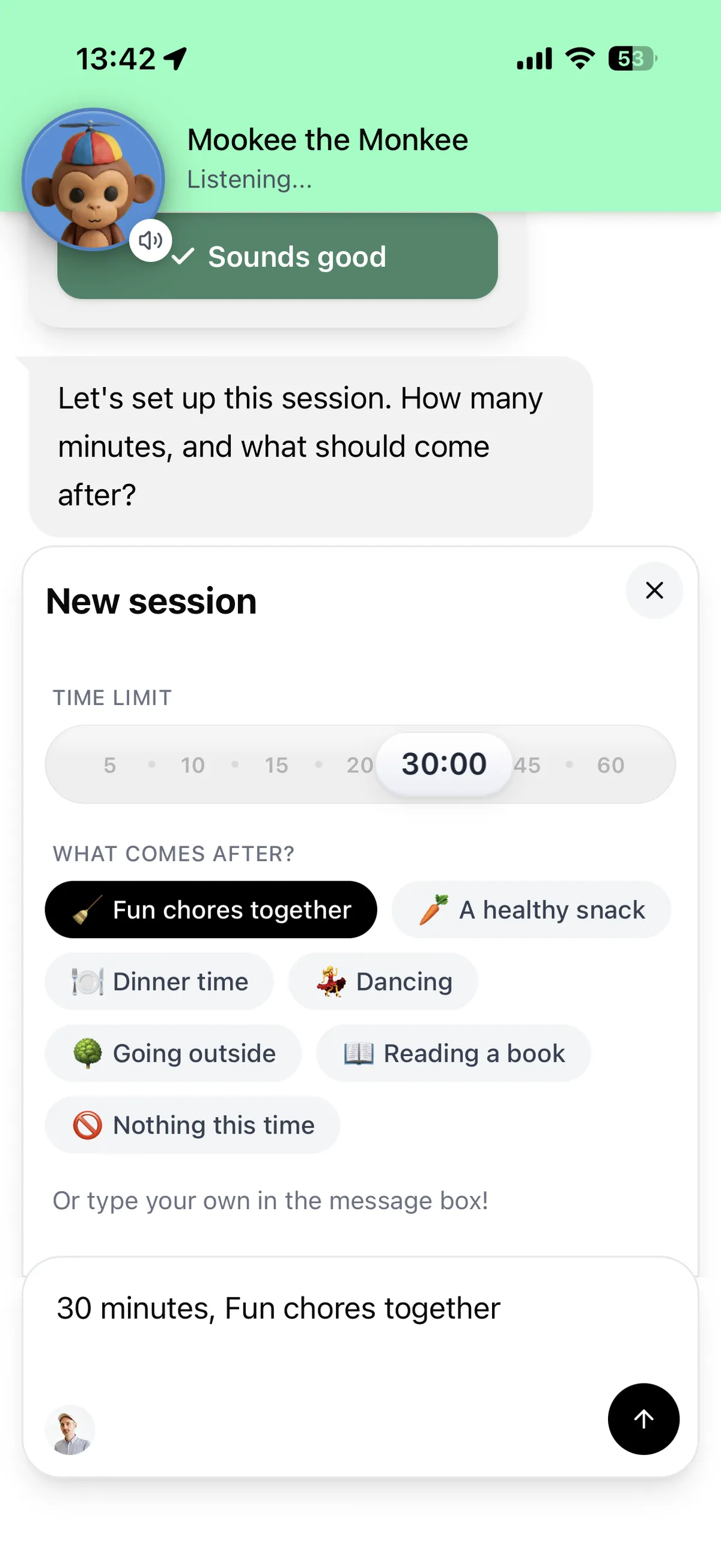
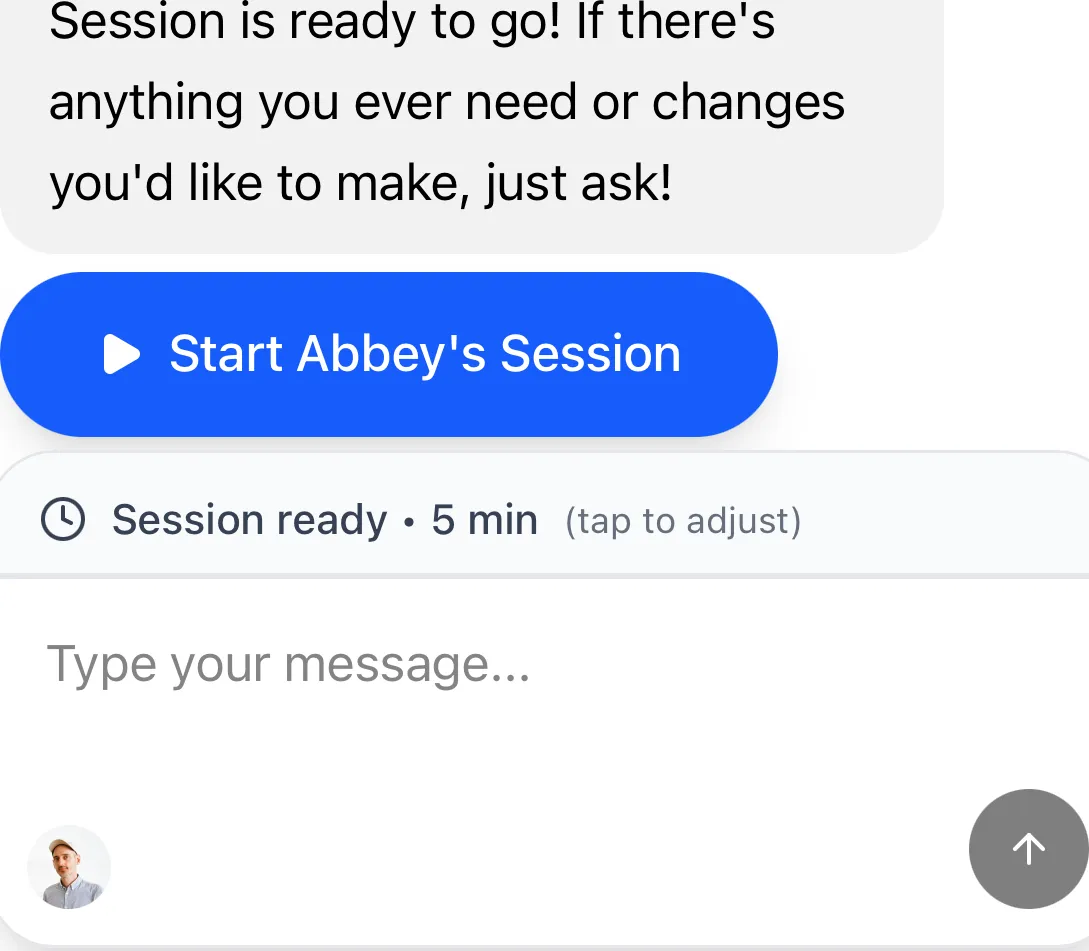
  4. Click the send button (up-arrow icon) to confirm your session settings. Mookee will confirm that the session is ready.

  5. When your child is ready to begin, you can click the blue Start [Child’s Name]’s Session button if you’re watching on your own device.
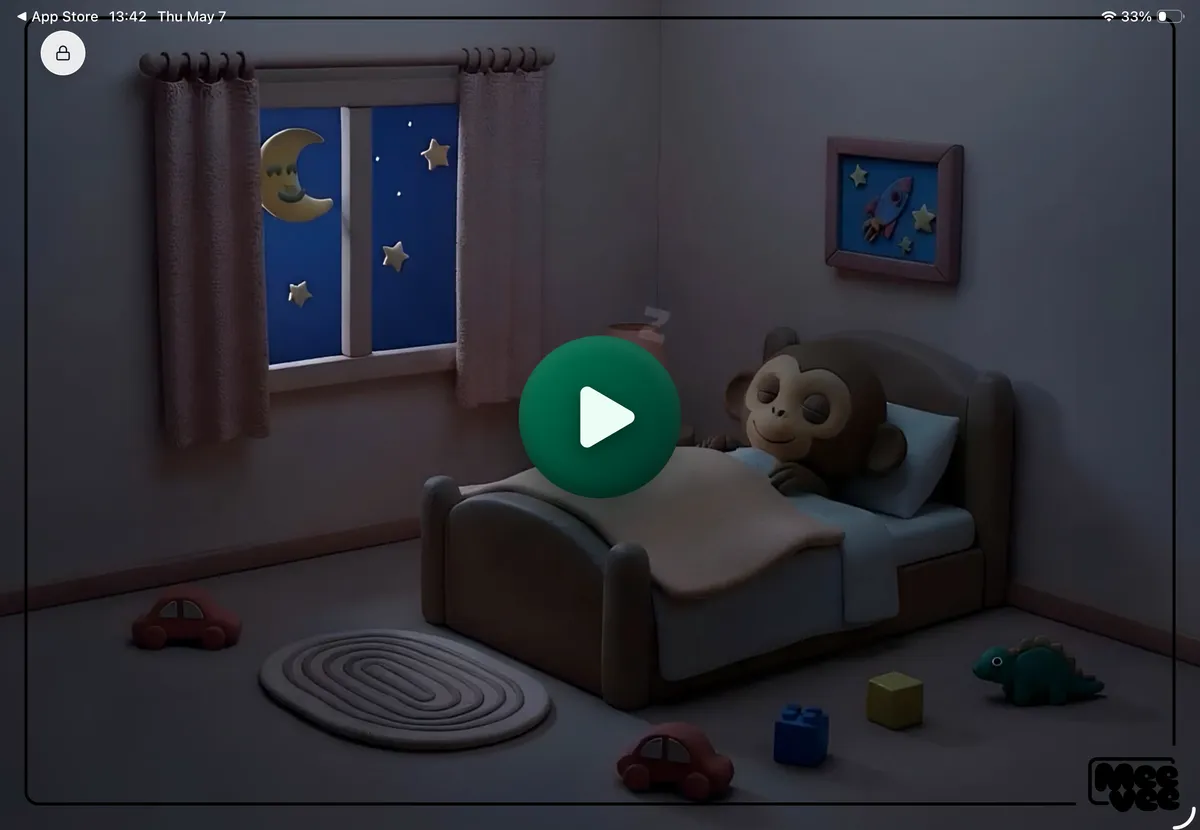
    If your child is using a paired device, the big green play button will appear over sleeping Mookee.
Summary

Starting a new play session in Meevee allows you to define the length of your child’s screen time and pre-select a transition activity for when the session ends. This feature helps create clear expectations and makes it easier to guide your child from screen-based play to other activities, all managed from the parent chat interface.

Related

  • Set a Screen Time Limit for a Session
  • Choose an Activity for After Screen Time Ends
  • Access Parent Controls During a Live Session

Last updated: 7 May 2026

Previous How to Set a Screen Time Limit for a Play Session Next Review the Post-Session Summary
Screen Time That Ends Well
  • Made for Parents
  • Curated Content
  • Made for Kids
  • Built with Care
  • Testimonials
  • Membership
  • Blog
  • Help Center
  • The Meevee Story
  • Our Team
  • Careers
  • Parent Guides
  • Printables
  • Content Standards
  • FAQs
  • Support
  • Privacy
  • Terms of Service
  • Press Kit
  • Contact Us
  • For Distributors
  • For Creators
  • Meevee for iOS
  • Meevee for Android
  • Meevee for Smart TV
© COPYRIGHT MEEVEE B.V. 2026