How to Set a Screen Time Limit for a Play Session
With Meevee, you can easily control how long your child’s play session lasts. This guide shows you how to set a specific time limit before a new session begins. Defining a duration helps manage screen time and ensures a smooth transition to the next activity.
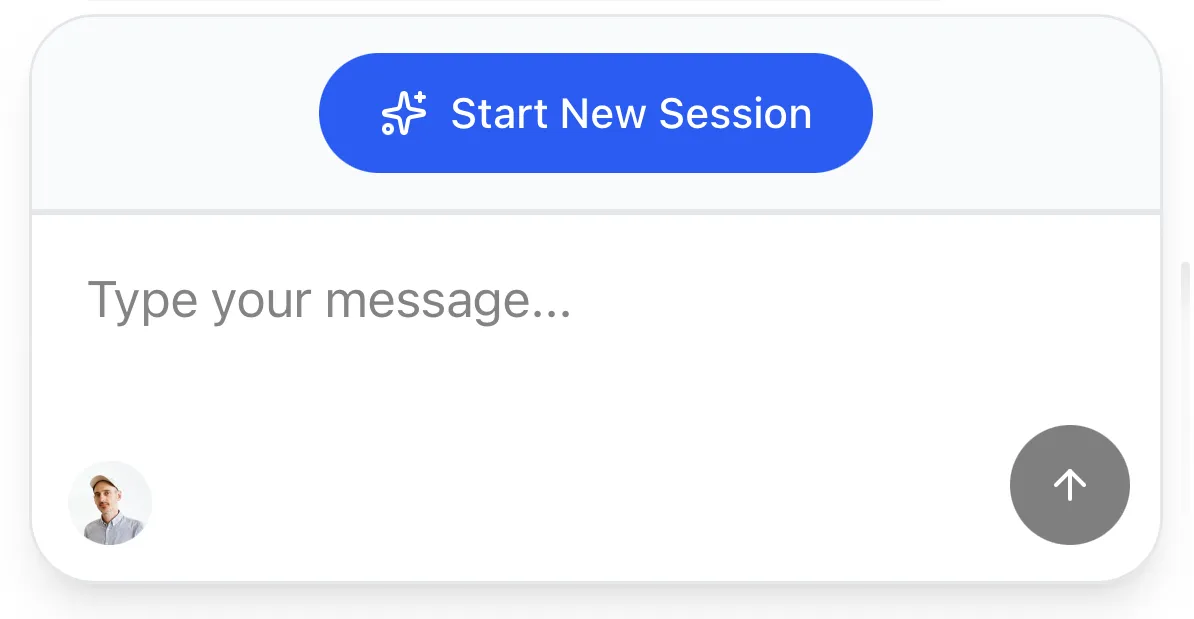
After setting up your child’s profile, click the Start New Session button in the chat with Mookee.
In the New session window that appears, locate the TIME LIMIT slider.
Click and drag the slider to set the desired session length. You can choose a duration between 5 and 60 minutes.
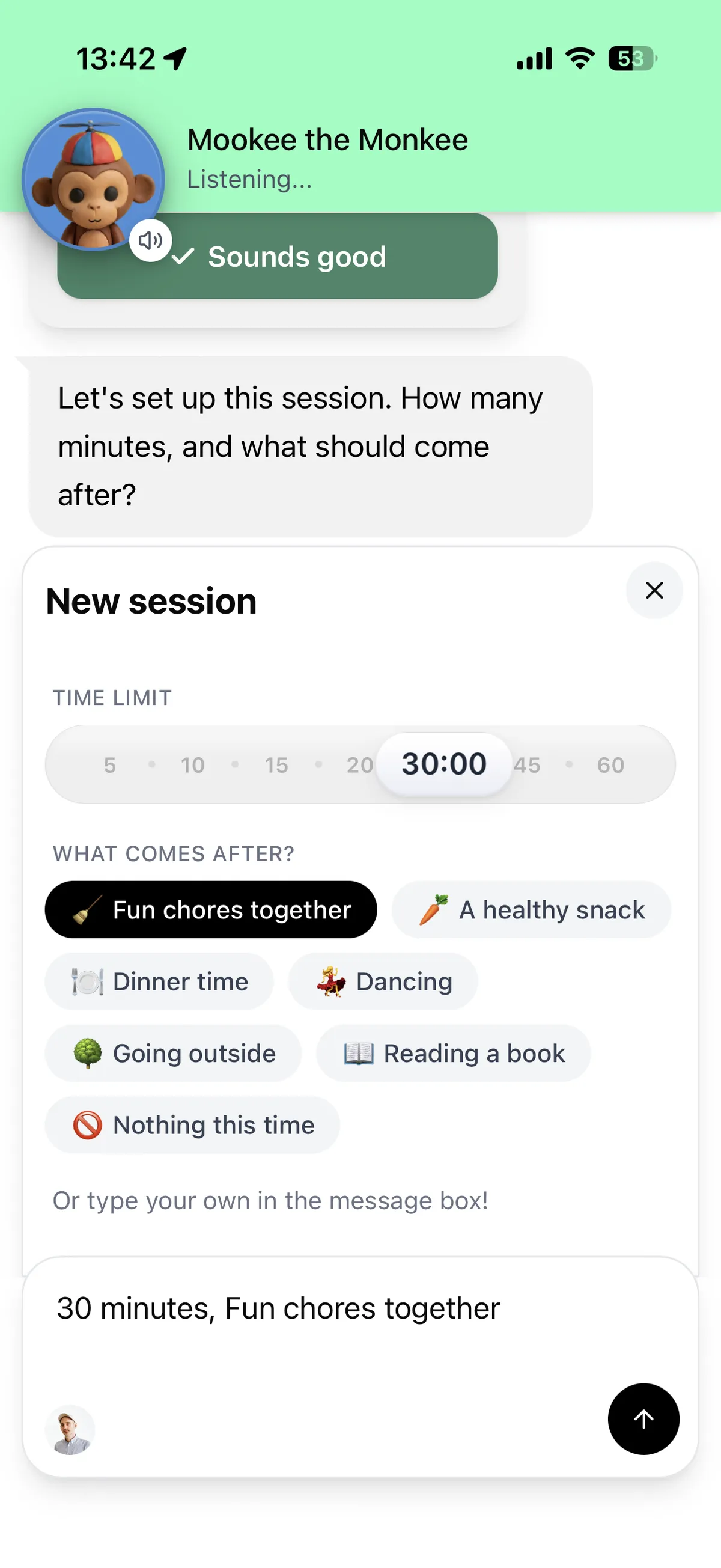
Once you are happy with the time limit, click the send button to confirm the session details. The session will now be ready for your child to start.
How to Adjust the Time Limit During a Live Session
You can also change the time limit or end a session early from the parent controls. Either on your own device by tapping the banner above the input box or directly on the child’s device.
From the child’s play screen, press and hold the lock icon in the top-left corner for two seconds.
When prompted for Parent access, enter your birth year and click the arrow button to open the parent chat.
Click the Active Session bar at the bottom of the chat, which shows the time remaining.
Use the slider to adjust the time, then click Update Time. You can also click End Now to stop the session immediately.
Summary
Setting a time limit is a core feature of Meevee that empowers parents to manage screen time effectively. This guide covers how to define the duration for a new session and how to adjust the timer during an active session using the parent controls. This helps create predictable routines and smoother transitions for your child.