Understanding the Child’s Playspace
The Playspace is the main environment your child will interact with during their Meevee sessions. It’s a colorful, claymation-style world designed to be a safe and engaging space for them to explore curated videos and activities. Your child enters the Playspace on their paired device as soon as you start a new session from your own device.
Personalized Environment
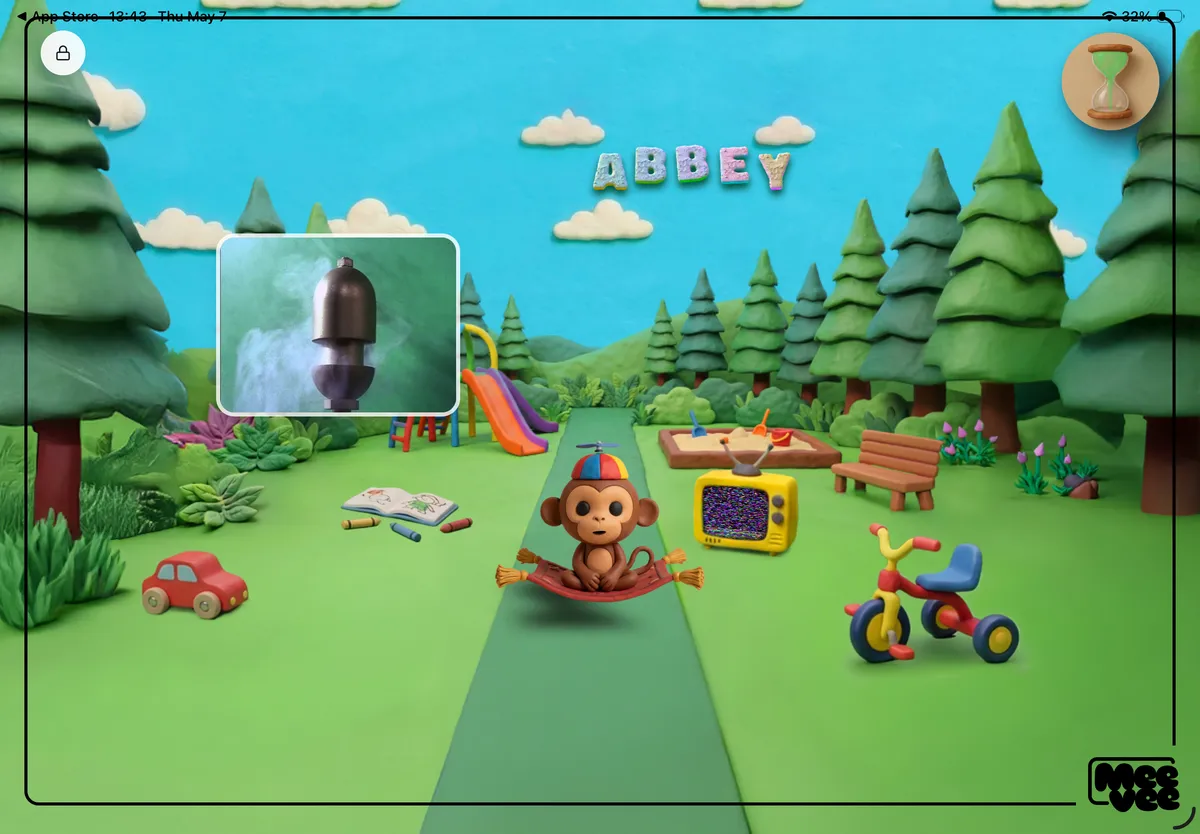
The Playspace is personalized for your child. Mookee the Monkey acts as their guide, and your child’s name will appear in the background, making the space feel like their own. This area serves as the central hub where all videos and activities are launched.
Key Features of the Playspace
The Playspace is designed to be simple and intuitive for a child to navigate. Here are the main elements they will see:
Mookee the Monkey: Your child’s guide who introduces the plan for the session, including the videos and activities they’ll enjoy.
The TV: This is where Mookee presents the videos selected for the session. These videos are curated to match your child’s age and the interests you provided during setup.
Interactive Brain-Breaks: Sessions are mixed with fun, off-screen-style activities like coloring, puzzles, and memory games. These appear in the Playspace between videos to encourage active engagement.
The Hourglass Timer: Located in the top-right corner, the hourglass is a visual timer that shows how much playtime is left. As the session nears its end, Mookee provides gentle reminders to help prepare your child for the transition.
The Parent Lock: The lock icon in the top-left corner is for parent access only. Press and hold this icon for two seconds to open the parent chat and adjust session settings.
The Wind-Down Routine
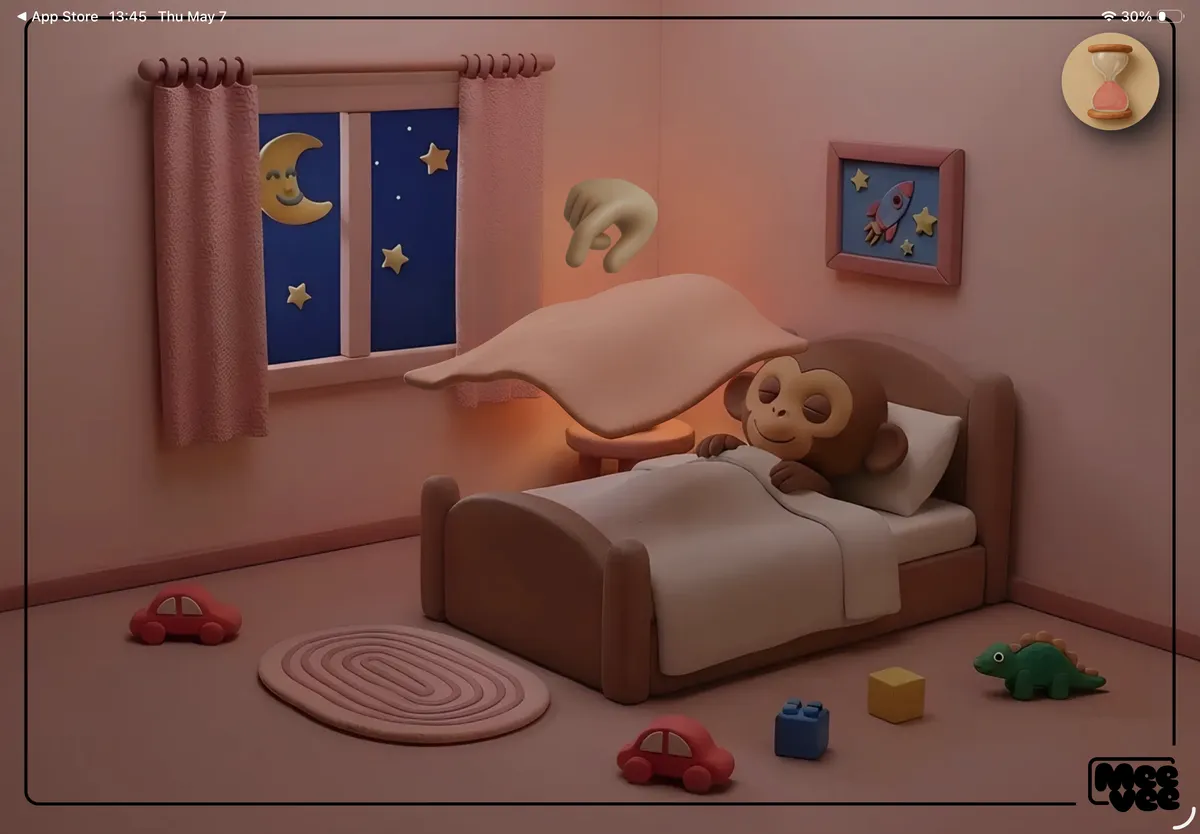
Every session concludes with a gentle wind-down routine to help your child transition smoothly away from the screen. Mookee will get sleepy, and your child will be invited to help tuck him into bed and turn off the light. This activity provides a clear and calm signal that screen time is over.
Tips for a Great Experience
You can manage an active session directly from your own device using the chat interface. If you need to end a session early or change the time limit, you can do so without interrupting your child’s experience on their device.
Summary
The Child’s Playspace is a custom-built, interactive world where your child can enjoy a balanced mix of curated videos and engaging brain-break activities. Guided by Mookee the Monkey and structured by a visual hourglass timer, each session is designed to be fun, age-appropriate, and ends with a calm wind-down routine to make transitioning off the screen easier for everyone.